Photo guide
What kind of photo keeps the face in a dance video
Pick It Up Dance Video reads the photos you upload and tries to carry those faces into a 12-second vertical dance performance. A sharp, front-facing photo gives the model something clear to follow. It does not promise that every frame will match the source perfectly, so watch the file before you share it.
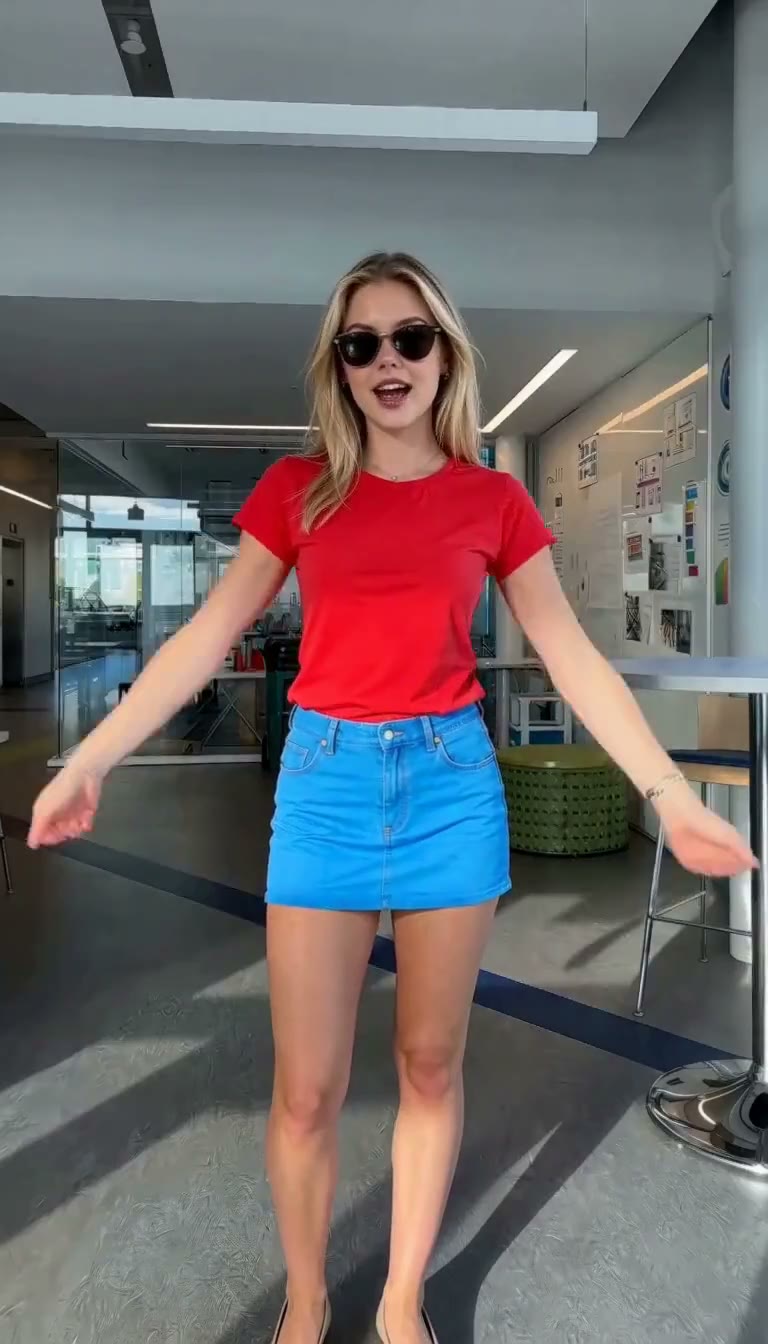
Below, each source photo sits next to the Pick It Up Dance Video generated from it: indoor solo, another solo setting, and outdoor duo. The studio uses one photo for a solo, one group photo or two individual photos for a duo, and three photos for an outfit change.
What to upload
Each solo slot is one person. The indoor solo template needs one clear photo. The outdoor duo uses one group photo by default, with two individual photos available as an alternative. The outfit-change template needs three photos of the same person in different outfits.
A group photo is the simplest way to make the duo. Keep both people visible and large enough to read. If you choose the two photo mode, use one person per file and match the framing.
- Front-facing, both eyes visible, even light.
- One person in each solo photo. Similar distance across the set helps.
- JPG, PNG, or WebP, up to 10 MB.
- Square or portrait is fine. The export is reframed to 9:16.
A head-and-shoulders still can work, but a wider standing shot helps the dance and the clothing read. The scene and camera move come from the selected template, not from the place you took the photo.
More photos are not automatically better. For an outfit change, consistency matters more than variety: keep the same face, body, approximate framing, and lighting across all three looks.
How to shoot the still
Use a window or an overhead room light, not a single lamp beside the face. Side light looks dramatic in a portrait and then hides one eye. Face the window. Hold the phone at eye height, an arm’s length or a little farther, so the nose is not stretched by a close wide-angle lens. Ask the person to look at the lens, not at the floor, and to drop sunglasses and anything else covering the mouth.
Take three frames and keep the sharp one. If you pinch-zoom until the picture looks soft, that softness is now the file. A screenshot of a photo from another app is the same kind of loss: you are uploading a picture of a picture. Save the original from the camera roll.
Match the set. Same approximate distance, same time of day, same direction of light. A mix of a bright indoor portrait and a night street photo tells the model those are different conditions, and the night face is the one with less to copy. Glasses can stay when you can see the eyes through them. A cap can stay when it does not shadow the eyes into a black band.
Before you drop the files, look at each one at full size on the phone. You should be able to tell the person apart from a sibling. If you cannot, the model cannot. Delete the blurry extra rather than uploading it “just in case.” An extra bad still does not average out against a good one. It adds a second, worse guess.
Source photos and generated videos
Each pair uses a real source photo from the left and the Pick It Up Dance Video generated from that same photo on the right. These are matching people, not mixed examples.
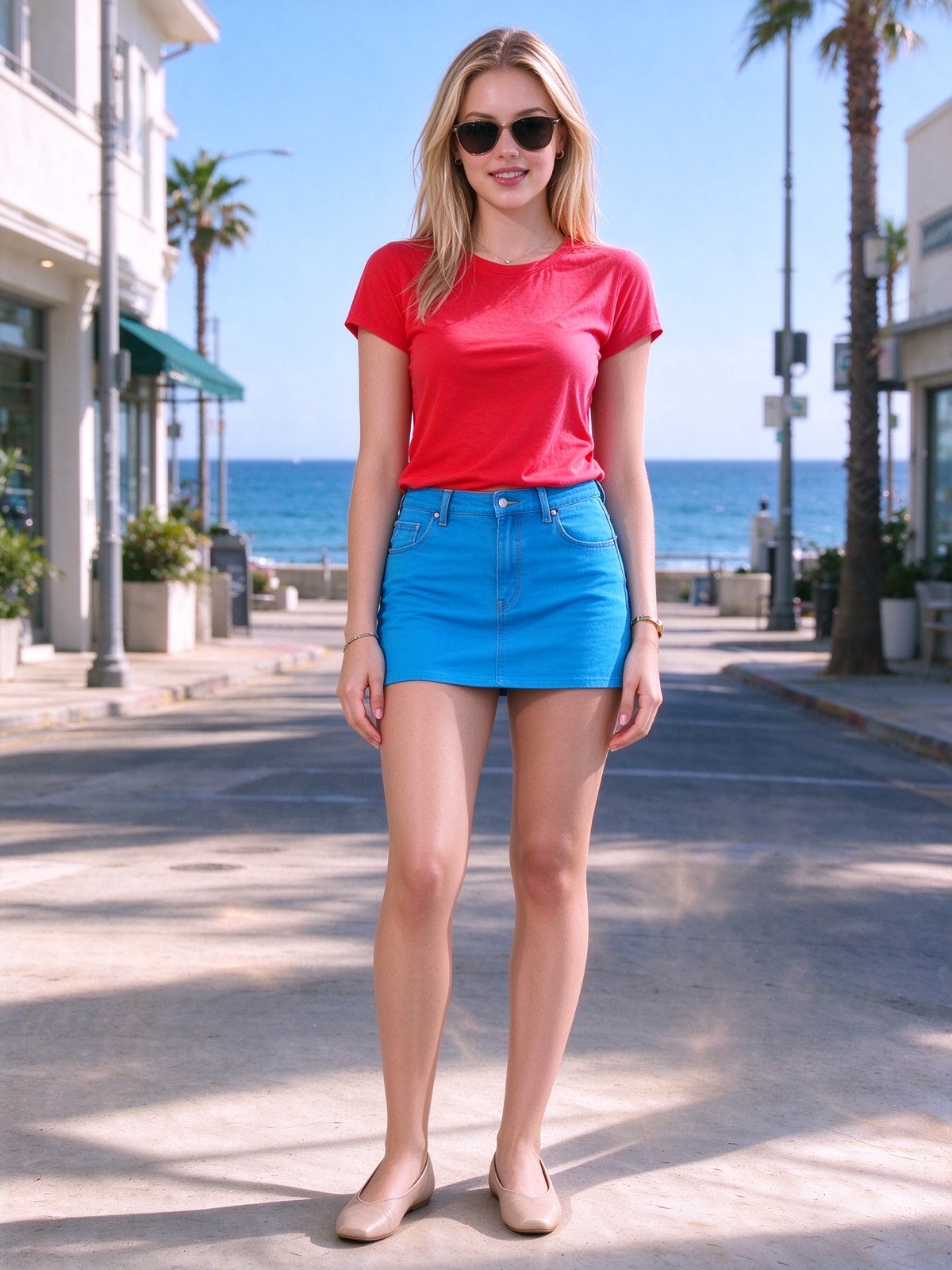
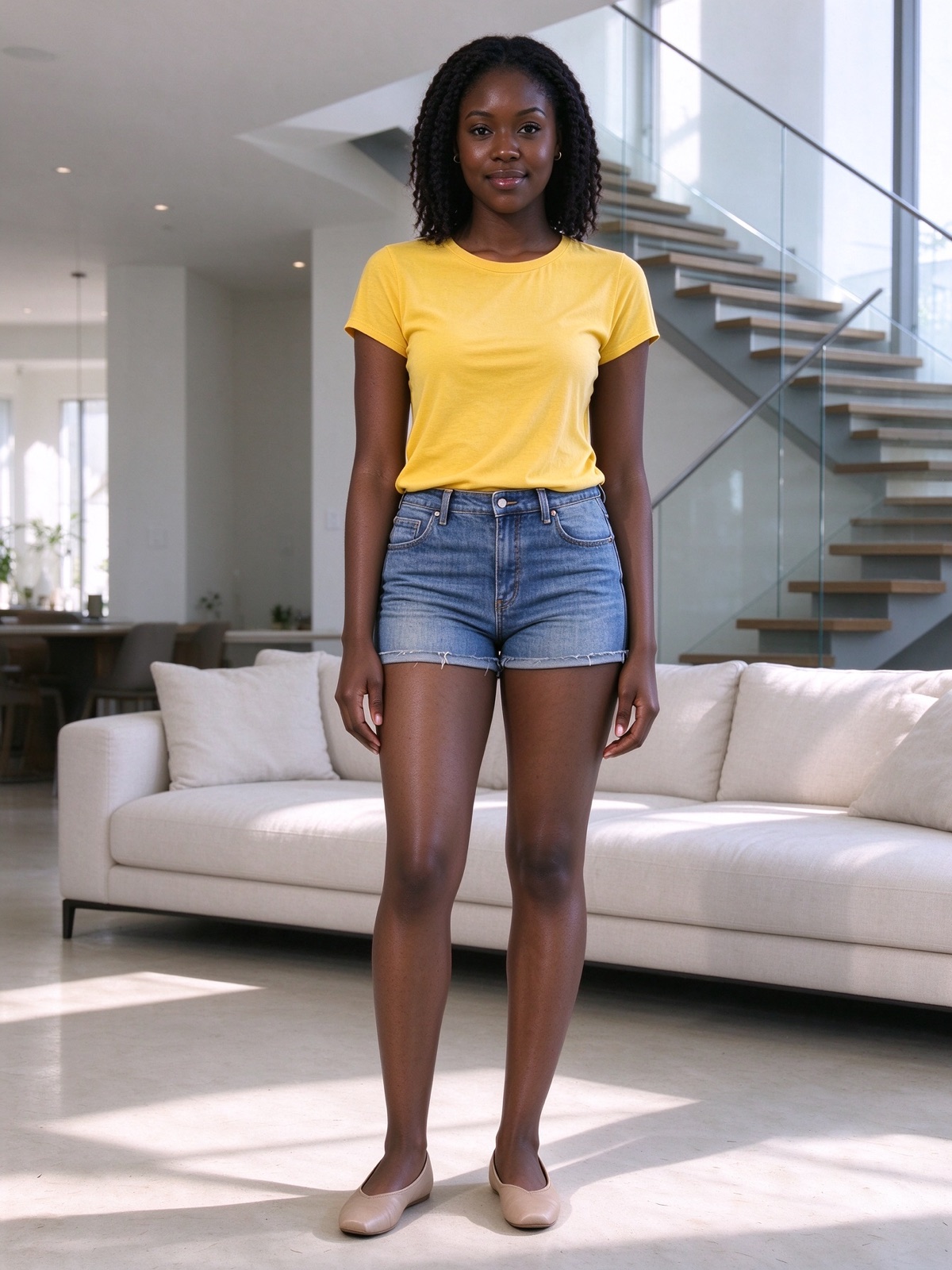
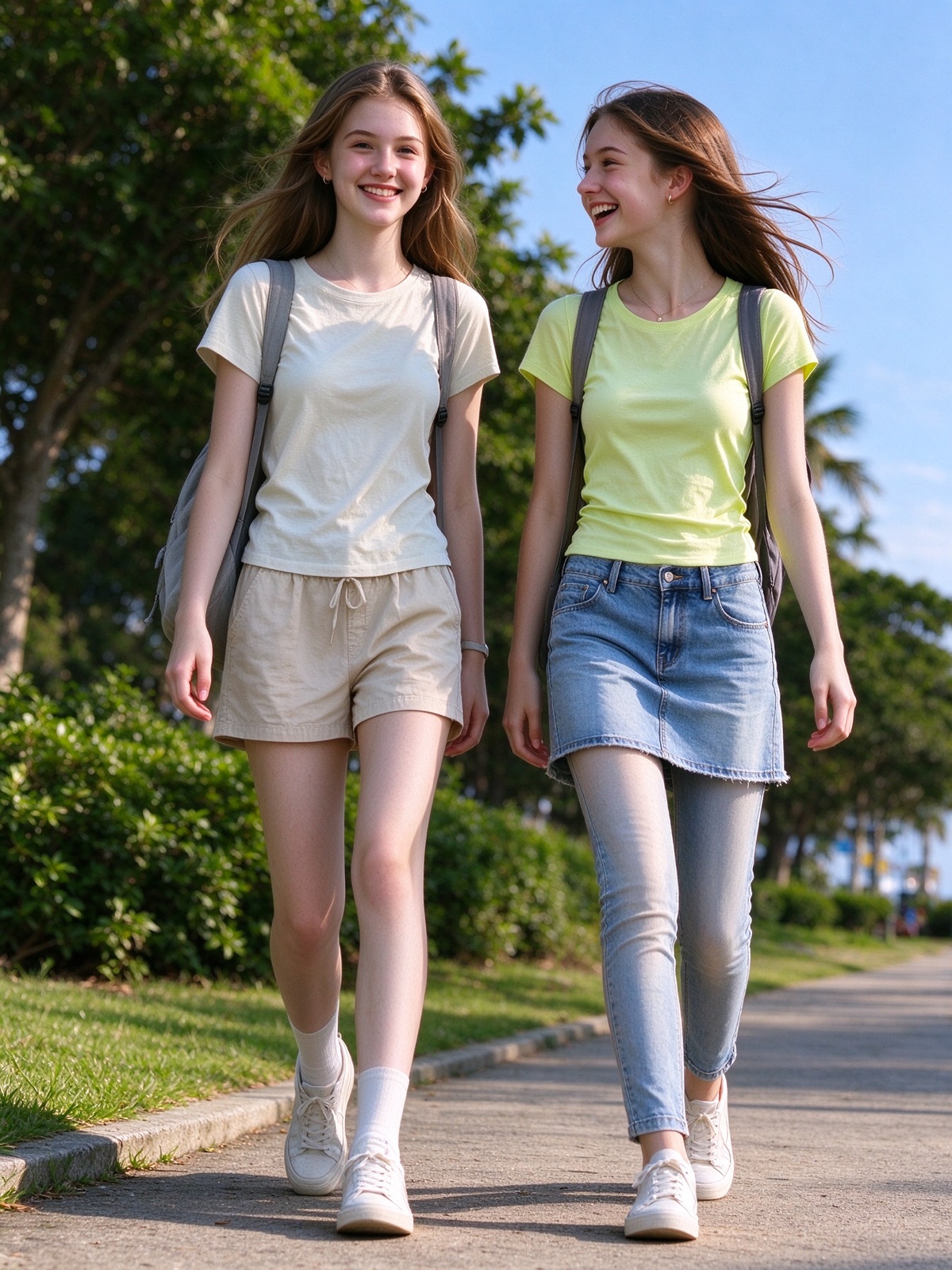
Solo, duo, or outfit-change inputs
Solo uses one photo. Duo uses one group photo by default, or two individual photos if you prefer. Outfit change uses three photos of one person in different looks. In every mode, faces should be large enough to read and fully visible.
Keep the set consistent. If two photos are straight-on and the third is a dark profile from across a room, that third face is the one most likely to wander. Hats and glasses can stay if the eyes are still visible. A beauty filter that reshapes the jaw rewrites the person before the model starts.
Solo uses one of these standing portraits. Duo uses a group photo like the third image, with both people large enough to tell apart.
What a sharp photo still cannot fix
A good still raises the chance that the face stays recognizable. It does not lock identity, hands, or motion. Fingers can melt, a head can turn further than the photo ever did, and a costume can drift. The selected dance template supplies the scene and camera move.
If the result looks off, change the photo before you change the resolution. A blurred source stays a guess at 768P and at 2K. When you watch the clip, check three things in order: is it the right person, are the eyes still a pair, and do the hands survive the first few seconds. A face that is close except for a melted hand is a photo problem only if the source hand was hidden. If the source hand was clear and the clip hand is not, that is the model drifting, and another upload of the same sharp photo may not fix it. Side-by-side stills and frames: photo vs clip. Longer notes on drift: when the face moves off the photo.
Photos you cannot upload
Use only photos you have the right to use. Do not upload anyone under 18, public figures, or copyrighted characters you do not control. The studio asks you to confirm that permission, and that the clip is a parody you will not use to mislead anyone or in advertising.
Use only photos you have the right to use. Add audio you have the right to use after download, and do not use someone’s likeness to mislead people or advertise without permission.
After you generate
A render usually takes about 7 minutes. Keep the tab open. Sign in, buy credits, then generate. 768P is 12 credits and 2K is 20.
Packs are on pricing. A failed or blocked job returns reserved credits. That is not a cash refund. Finished clips can be downloaded for seven days. Source photo binaries are deleted on complete, failure, or expiry cleanup, with a target retention of up to 24 hours. A remote vendor copy may need a retry.
Signed-in clips stay in the library and in the history strip on the homepage studio. Closing the wait does not cancel a job the generator has already accepted.